
Single Sign-On
Single sign-on lets your team reach PeekHire through the identity provider you already run — Okta, Microsoft Entra ID, Google Workspace, OneLogin and anything else that speaks SAML 2.0. Nobody needs another password, and access follows whatever rules you already enforce there.
Single sign-on is part of the Business plan and is available during the 7-day trial. Owners and admins can set it up.
Before You Start
Have two things ready: the metadata your identity provider publishes for the application, and access to the DNS zone of every email domain you want to connect.
Connecting Your Identity Provider
Go to Account → Single Sign-On.
- Register PeekHire in your identity provider. The page shows an Entity ID and an ACS URL. Copy both into the SAML application you create there. Those two values are specific to your workspace.
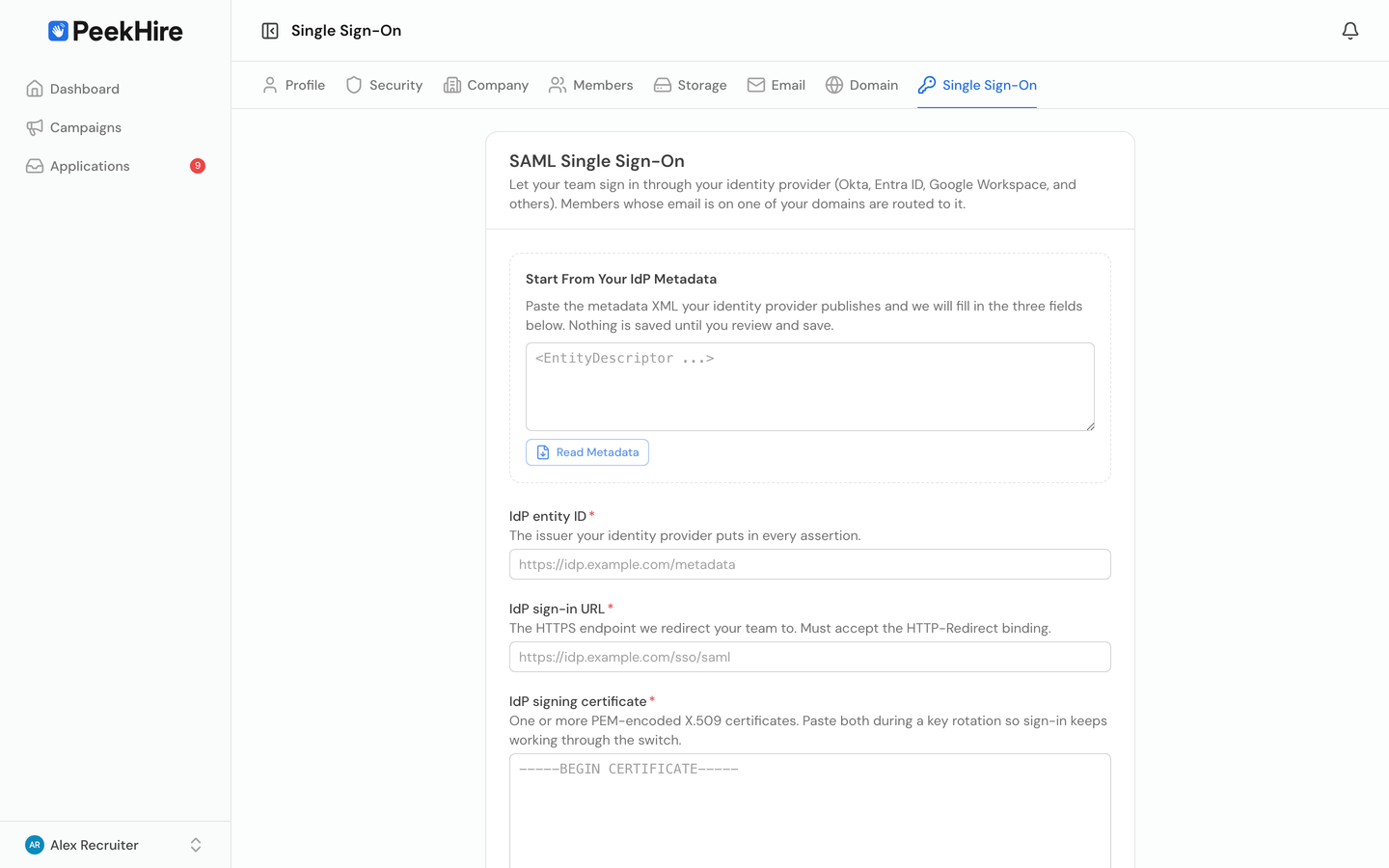
- Bring the details back. Paste the metadata XML your provider publishes into Start From Your IdP Metadata and choose Read Metadata. The entity ID, the sign-in URL and the signing certificate are filled in for you. You can also type the three fields by hand.
- Add your email domains. Everyone whose address is on one of these
domains uses this connection. Public mail providers such as
gmail.comcannot be connected. - Save.
Verifying a Domain
A domain does nothing until you prove you control it. For each domain the page shows a TXT record:
| Field | Value |
|---|---|
| Type | TXT |
| Name | _peekhire-sso.your-company.com |
| Value | peekhire-sso-verification=… |
Add it to your DNS zone, then choose Verify Domain. DNS changes usually appear within minutes but can take longer. Until a domain is verified it routes no sign-ins and enforces nothing.
Checking Your Setup
Check Connection runs through everything that can be judged without sending anyone to your provider: your plan, domain verification, the signing certificate and how long it is still valid, whether the sign-in URL can be reached, and whether a sign-in request can be built from your settings. Each item tells you what is wrong rather than just failing.
Test Sign-In opens the real flow in a new tab so you can try it yourself before your team does.
Options
Create accounts on first sign-in. New people your provider approves join the workspace as members automatically. Turn this off to admit only people you invited.
Require single sign-on for these domains. Everyone on your verified domains must use your provider. Password, Google and Microsoft sign-in are all turned away. You can only switch this on once a domain is verified.
The workspace owner is always exempt from this requirement. If your identity provider ever becomes unreachable, the owner can still sign in with a password and turn the requirement off.
Allow sign-in started by your IdP. Lets people start from the app tile in your provider instead of from PeekHire. Leave it off unless you need it: a sign-in that PeekHire did not start cannot be tied back to a request of ours, so it is checked against the assertion alone.
Rotating the Signing Certificate
When your provider rotates its signing key, paste both certificates into the certificate field, one after the other. Sign-in keeps working with either, so there is no window where people are locked out. Remove the old one once the rotation is finished.
Keeping Accounts in Step
Single sign-on decides who may come in. To have accounts created and deactivated automatically as people join and leave, set up user provisioning as well. See User Provisioning (SCIM).
Who Signs In How
Account → Members shows a Sign-In column for every member: password, Google, Microsoft or SSO. It is the quickest way to see who has not moved to single sign-on yet.
If Your Plan Changes
Your configuration is kept if you leave the Business plan, but the connection stops carrying people through. Members are told to contact you and can sign in with their email and password instead, since the sign-on requirement no longer applies. Owners and admins can still sign in through the provider, so you can restore the plan from inside the product. Switch back to Business and everything resumes unchanged.
Removing the Connection
Remove Connection asks for confirmation first, because it takes effect at once: nobody can sign in through your provider any more, and your verified domains are removed with it, so user provisioning can no longer add people. Anyone who has only ever signed in through single sign-on sets a password with Forgot password to get back in. To connect again later, you verify your domains again.
Troubleshooting
"Single sign-on is not set up for this email domain." The address is not on a verified domain. Check the spelling, and check that the domain shows as verified.
"Single sign-on did not complete." The assertion was refused. The usual causes are an expired signing certificate, a certificate that no longer matches the one your provider uses, an entity ID that differs from the one configured, or a response that arrived too late. Run Check Connection first.
"This address already belongs to a different workspace." That email address is a member of another PeekHire workspace. It has to leave that workspace before it can join yours.
"Too many sign-in attempts from your network." More sign-ins than usual arrived from one network address in a short time. Wait a few minutes and try again. Offices that share one address have plenty of room for everyday use.
"This workspace only admits invited members." Just-in-time account creation is off. Invite the person, or turn the setting on.